
Digital Literacy
Everything a first office job expects you to know about computers, in twenty short modules with a practical task each. Start with the three free modules; the full course is in NIBS Plus.
Included in NIBS PlusSkills Passport skill recorded
- Duration
- 20 modules, about 40 hours
- Mode
- Online or at an e-Learning Cafe
- Credential
- Certificate of Completion and a Skills Course Certificate
- Assessment
- Module quizzes, a practical task per module and a capstone project assessed by a NIBS facilitator
- Access
- Included in NIBS Plus
What is this programme?
Digital Literacy is the NIBS foundation course. It takes you from switching a computer on to using email, spreadsheets, the internet, AI tools and basic security with confidence, in twenty modules of short lessons.
Every module ends with a check-yourself quiz and a practical task. The tasks build a portfolio you can show an employer, and the capstone project is assessed by a NIBS facilitator against a NIBS standard.
Who is it for?
Anyone starting out with computers, anyone returning to office work, and anyone who uses a phone well but has never had to use a laptop for a job. No prior experience is needed.
What will I be able to do?
By the end of the course you can do what a first office job expects, module by module:
Module 1: Welcome to technology
- What a computer actually does, why it matters for work in South Africa, and how the machine stores everything as ones and zeros.
- How this course works
- Computers in everyday life
- Input, processing, storage and output
- Bits, bytes and how computers count
Module 2: Keyboard skills and working comfortably
- Typing without looking, and sitting so that a day at a computer does not hurt.
- Why typing speed matters, and how to sit
- Letters: the home row and beyond
- Words, sentences and numbers
Module 3: Being a good digital citizen
- Your online reputation, other people's work, and how to tell real information from noise.
- Digital citizenship and empathy online
- Your digital footprint and personal brand
- Other people's work: copyright and plagiarism
- Media literacy: facts, opinions and fakes
Module 4: The internet, searching and social media
- What the internet is, how to use a browser like a professional, how to find reliable answers, and how to use social platforms for work.
- What the internet actually is
- Using a browser like a professional
- Searching and researching properly
- Social media for work, not just for fun
Module 5: Protecting yourself online
- Your personal data, strong passwords, the scams that target South Africans, safe browsing, and looking after your mental health in a connected world.
- Your personal data and who wants it
- Passwords, passphrases and encryption
- Scams, phishing and social engineering
- Browsing and shopping safely
- Technology and your mental health
Module 6: Using generative AI wisely
- What AI chat tools are good for, how to get useful answers, and where the risks lie.
- What AI is, and what it is not
- Writing a prompt that works
- Using AI responsibly at work
Module 7: Computers, Windows and files
- The operating system, finding your way around Windows, and keeping files where you and your colleagues can find them.
- What an operating system does
- Finding your way around Windows
- Files and folders that make sense
- Settings, accounts and keeping Windows healthy
- The command line, a first look
- Backups and storage that survives
Module 8: Applications and software
- The kinds of software offices use, where to get it safely, and the tools they have in common.
- The software offices run on
- Getting, installing and removing software safely
- Tools every program shares
Module 9: Word processing
- Letters, CVs, minutes and reports that look professional and are easy to update.
- A document from blank page to PDF
- Formatting text and paragraphs
- Pages, tables and images
- Review tools and a professional CV
Module 10: Spreadsheets
- Excel and Sheets for lists, budgets and records: entering data, formulas that do the arithmetic, and charts that explain it.
- What a spreadsheet is for
- Entering and formatting data
- Formulas and functions
- Sorting, filtering, tables and charts
Module 11: Presentations
- Slides that support a speaker instead of replacing one, and the confidence to present them.
- Building a slide deck
- Text, images and layout on slides
- Transitions, animations and presenting well
Module 12: Email, calendars and communication tools
- Professional email, a calendar you can trust, and the right tool for each conversation.
- Choosing the right channel
- Email that gets read and answered
- Netiquette and difficult messages
- Calendars and meetings
Module 13: How computers are built
- What is inside the box, how to connect devices, and what the numbers on a specification sheet mean when you buy or fix a computer.
- Reading a specification
- Connecting devices: ports, printers and power
- Inside the case: motherboard, CPU, memory and graphics
Module 14: Networks and connecting to the internet
- How devices talk to each other, the connections available in South Africa, setting up a small network, and fixing it when it breaks.
- What a network does
- Routers, modems, ISPs and the ways to connect
- Setting up a small network
- Troubleshooting connectivity, step by step
Module 15: Cloud computing and virtual machines
- Where "the cloud" actually is, how to use cloud storage and shared documents well, and what virtualisation means.
- What the cloud is
- Cloud storage and shared documents
- Virtual machines and remote desktops
Module 16: Keeping devices and networks secure
- Malware, the basic security habits that stop it, the tools on every computer, and a safe small network.
- Malware and how it arrives
- The basic security habits
- Security tools on every computer
- Securing a small network
Module 17: Databases and structured information
- When a spreadsheet is not enough: what a database is, how records and tables relate, and how the systems at work store your data.
- What a database is and when you need one
- Using a simple database at work
- Relational databases and big data, briefly
Module 18: Telling computers what to do: a first look at coding
- What code is, how to plan a small program, and the ideas every programming language shares. Not a programming course; the door to one.
- What code is
- Planning a program with pseudocode
- Variables, data types and operators
- Decisions, loops and debugging
- Functions, lists and objects
Module 19: Using technology to plan and innovate
- Running a small project with digital tools, and the technologies changing work in the next few years.
- Planning a project with digital tools
- Carrying out and closing a project
- The technologies changing work
Module 20: Capstone: use technology to solve a real problem
- Everything in one piece of work: choose a real problem, design a digital solution, build it with the tools from this course, and present it.
- Information systems and when technology goes wrong
- Your capstone project brief
- Build, test and present
What will I actually do?
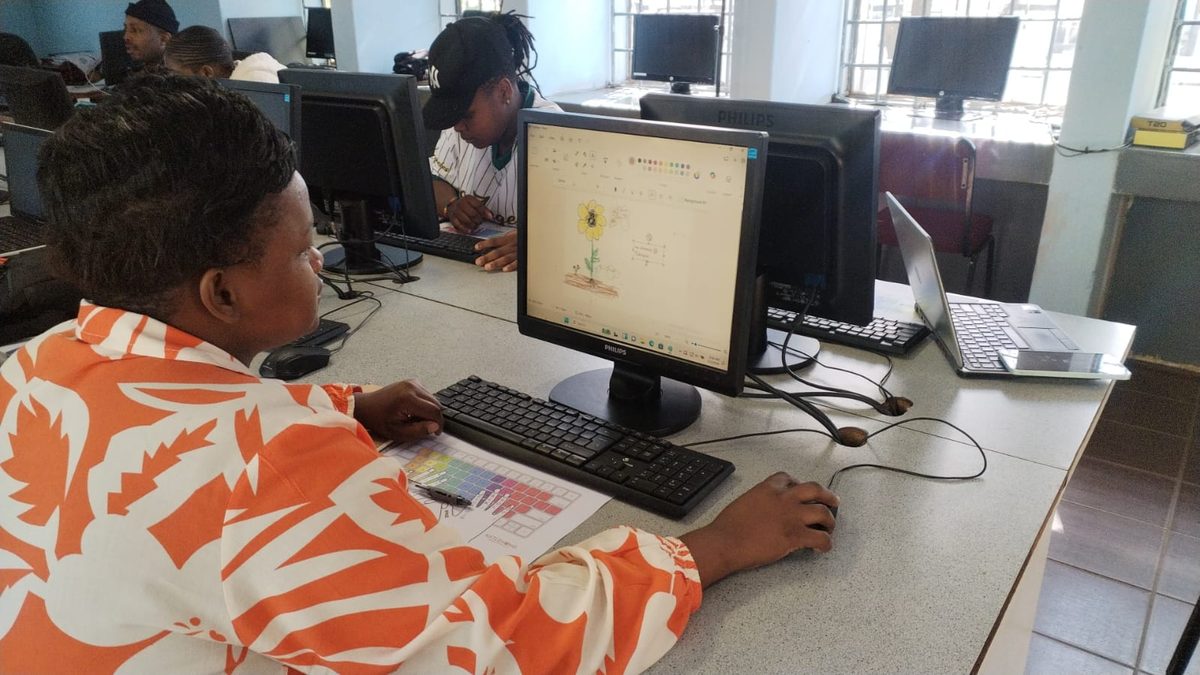
Work through the lessons at your own pace, online or at an e-Learning Cafe. Do the "Try it now" steps on a real computer. Pass each module's quiz (75%), submit its practical task, and finish with the capstone project.
How long does it take?
About 40 hours in total, or 8 to 10 weeks at 3 to 5 hours a week. Faster if you already know some of it.
How will I study?
Online through NIBS Campus on any device, or at an e-Learning Cafe with computers, internet and a facilitator.
What evidence will I produce?
Twenty practical tasks (documents, spreadsheets, screenshots, a short video, a small program) and one capstone project, saved in your NIBS folder and submitted in the campus.
Every submission moves through the same states:
- Assigned
- In progress
- Submitted
- Under review
- Competent
- Resubmission required
- Closed
What credential do I receive?
A Certificate of Completion when every module is complete, and a Skills Course Certificate for Digital Literacy on your Skills Passport when the capstone is assessed as competent. No CPD or external recognition is claimed.
What does it cost?
Included in NIBS Plus, monthly or prepaid. The first three modules are free with a NIBS Campus account.
How do I start?
- Start freeModules 1 to 3 open with a free NIBS Campus account.
- Add NIBS PlusMonthly, or prepaid for 3, 6 or 12 months.
- ContinueThe full course appears in your campus as soon as your access is active.